
How to Edit Site on Wix: The Complete Step-by-Step Guide
This guide shows you how to edit site on Wix, step by step, with no jargon and no skipped steps. You will learn how to change text and images, add and delete pages, change your domain and site name, fix your layout, and edit your site from your phone. Whether you searched for how to edit wix website, how to edit website on wix, or how to edit my wix website, the steps are the same.
If you would rather not do it yourself, we can do it for you. WebMagnify Agency builds and edits Wix websites for small businesses across Virginia, including Norfolk, Richmond, and Virginia Beach. Read the guide, try it yourself, and if you get stuck, contact us and we will take it from there.
[Get a free quote] Jump to the done-for-you service
- Change text and images
- Add and delete pages
- Change domain and site name
- Fix your layout
- Edit from your phone
One team, one written quote, one monthly report.
Before you start: the Wix Editor, the dashboard, and a backup
Wix gives you two places to work. The first is your site dashboard, where you manage your domain, your billing, your inbox, and your site settings. The second is the Wix Editor, where you change what visitors see: the words, the pictures, the pages, and the layout.
To open the Editor, sign in to Wix, find your site on your dashboard, and select Edit Site. The Editor opens with your homepage. On the left you will see the main tools: Pages, Add Elements, Site Design, and App Market, among others. On the right, or at the top depending on your screen, you will see the tools for the thing you have selected. Click anything on the page to select it, then change it in the panel that appears.
There are two ways a Wix site can be built. The first is the Wix Editor, where you place and style every element yourself. The second is Wix ADI, which builds a first version of the site for you from a few answers. The steps in this guide are written for the Wix Editor, which is what most business sites use. If your site was built with ADI, the same ideas apply, but some menus sit in different places, and some design options are more limited.
One habit saves more time than any other: duplicate your site before a big change. In your dashboard, open Site Actions on your site and choose Duplicate Site. That copy is your safety net. If an edit goes wrong, the original is still there, and you can start again from the copy. Do this before you delete pages, change your domain, or rebuild a section.
A second habit matters just as much. Publish when you are done, and check the live site after you publish. Edits in the Editor do not change your live site until you press Publish. Get into the habit of pressing Publish, then opening your live site in a new tab and checking it on a phone as well as on a computer. Most of your visitors will arrive on a phone, so the mobile view is the one that matters most.
Done-for-you Wix design.
Fresh design or rebuild
A fresh design or a rebuild of your current site, built in the Wix Editor so you can update it yourself afterwards.
Service and area pages
Pages for your services and your area, with the keywords your customers actually search.
Mobile layout fixed
Mobile layout checked and fixed, so the site works properly on phones.
Domain and site name setup
Domain and site name set up correctly, with SSL active.
Forms and calls to action
Contact forms, maps, and calls to action that send enquiries to you, not to a dead end.
Handover and training
A short handover at the end, so you know how to edit the site yourself next time, using this guide.
How to edit your Wix website: the basic steps.
Learning how to edit wix site content is mostly learning where things live. If you typed how do I edit my Wix site into Google, this section is the answer. Once you know that, the rest is straightforward.
Open · Choose · Change · Check · Publish
Step 1: Open the Editor
Sign in to Wix, go to your dashboard, and select Edit Site on the site you want to change.
Step 2: Go to the page you want to edit
Use the Pages menu on the left to pick a page. Your homepage is the default, but you can open any page on your site from this menu.
Step 3: Click the thing you want to change
Click a heading to edit the words. Click an image to replace it. Click a button to change its text or where it links to. Click a section to change its background or layout. The panel that opens gives you the controls for that element and nothing else, which keeps things simple.
Step 4: Make the change
Type the new text in place, or use the text settings to change size, colour, and font. For images, use Change Image to pick a new one from your uploads or from the free image library. For buttons, change the text first, then check the link goes to the right page.
Step 5: Check the mobile view
Switch to the mobile view in the Editor before you publish. Text that fits on a computer screen often overflows on a phone, and sections can stack in a strange order. Fix the mobile view now, not after your customers have seen it.
Step 6: Publish
Press Publish in the top right. Then open your live site and check the change is there. If it is not, check you published the right site, and that you are not looking at a cached copy. A hard refresh usually fixes that.
That is the whole process in outline. The sections below take each common edit and walk through it in more detail, so you can follow the steps for the exact change you need to make.
Where we work in Virginia.
We build Wix sites for businesses across Virginia, with dedicated pages for the cities we serve most.
Norfolk
Wix website design in Norfolk for businesses across Hampton Roads, with the local pages and local keywords that matter there.
Richmond
Wix website design in Richmond for the state capital, with the local pages and local keywords that matter there.
Virginia Beach
Wix website design in Virginia Beach for the state’s largest city, with the local pages and local keywords that matter there.
Northern Virginia
We also serve Northern Virginia, including Alexandria and the wider Washington DC metro area.
If your site is a few small edits away from good, use this guide and do it yourself. If it needs a redesign, or if you have spent more than a weekend on it already, talk to us. A short call is enough to tell whether the job is a quick fix or a rebuild, and we will tell you honestly which one it is.
How our Wix design pricing works.
We do not publish a fixed price for Wix design, because no two Wix projects are the same. A small site with five pages costs less than a store with fifty products, and a rebuild costs less than a site built from nothing. A fixed price would either overcharge the small job or underprice the large one.
- The pages
- The design work
- The content
- The domain setup
- The handover
To get a quote, contact us with your website address and a short note about what you want to change. We will reply with the quote and a realistic time frame, and you can decide from there.
How do I edit my website on Wix?
Sign in to Wix, open your site dashboard, and select Edit Site. That opens the Wix Editor. Click the text, image, or button you want to change, make the change in the panel that appears, check the mobile view, then press Publish. Your edits do not appear on the live site until you publish, so always publish and then check the live site in a new tab.
How do I edit my Wix website?
The same way: dashboard, Edit Site, click the element, change it, publish. The key step people miss is the publish step. If you close the Editor without publishing, your changes are saved as a draft in the Editor but visitors still see the old version. Make it a habit to publish after every session, then check the live site.
How do you edit a Wix website?
You edit it in the Wix Editor, which you open from your site dashboard. For text, click and type. For images, click and choose Change Image. For pages, use the Pages menu to add, rename, hide, or delete a page. For your domain and site name, use Settings in the dashboard, not the Editor. For mobile, switch to the mobile view in the Editor and fix the layout there before you publish.
How can I edit my Wix website?
You can edit it from a computer in the Wix Editor, or from your phone using the Wix mobile app. The computer is better for layout work, new pages, and design changes. The phone is fine for quick text fixes and image swaps. Either way, publish after your changes and check the live site. If editing feels slow or confusing, duplicate the site first so you always have a copy to fall back on.
How to edit my website on Wix?
Open the Wix Editor from your dashboard and use the Pages menu to find the page you want. Click the section you want to change, make your edit, and check both the desktop and mobile views before you publish. If you are editing on your phone, use the mobile app or open the Editor in your phone browser, and remember that mobile edits change the mobile layout only.
Results from Search Console.
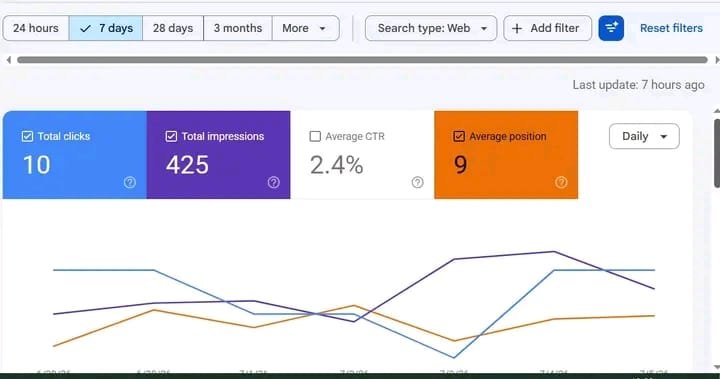
Google Search Console performance over 7 days: 10 clicks, 425 impressions, 2.4% CTR, average position 9. No client name or website is shown.
How to edit your Wix website: the basic steps.
Step 1: open the Editor. Sign in to Wix, go to your dashboard, and select Edit Site on the site you want to change.
Step 2: go to the page you want to edit. Use the Pages menu on the left to pick a page. Your homepage is the default, but you can open any page on your site from this menu.
Step 3: click the thing you want to change. Click a heading to edit the words. Click an image to replace it. Click a button to change its text or where it links to. Click a section to change its background or layout. The panel that opens gives you the controls for that element and nothing else, which keeps things simple.
Step 4: make the change. Type the new text in place, or use the text settings to change size, colour, and font. For images, use Change Image to pick a new one from your uploads or from the free image library. For buttons, change the text first, then check the link goes to the right page.
Step 5: check the mobile view. Switch to the mobile view in the Editor before you publish. Text that fits on a computer screen often overflows on a phone, and sections can stack in a strange order. Fix the mobile view now, not after your customers have seen it.
Step 6: publish. Press Publish in the top right. Then open your live site and check the change is there. If it is not, check you published the right site, and that you are not looking at a cached copy. A hard refresh usually fixes that.
How to edit text, images, and sections.
Most Wix edits are text edits, image swaps, or section changes. Here is how each one works.
Editing text. Click the text you want to change and start typing. The text box grows as you type, and the settings panel lets you change the font, size, colour, alignment, and spacing. Keep headings short and specific. A heading should tell the reader what the section is about in a few words, not repeat the page title. Body text should be plain and direct. If a sentence is hard to read out loud, rewrite it shorter.
When you edit text, check two things. First, check the mobile view, because a heading that fits on desktop can wrap badly on a phone. Second, check that your keywords are still there. If a page is meant to rank for a phrase, that phrase should appear naturally in a heading and in the first paragraph. Do not force it into every sentence.
Replacing images. Click the image, then choose Change Image. You can upload your own photo or pick one from the library. Use real photos of your business where you can. Stock photos are fine for backgrounds, but a real photo of your shop, your team, or your work builds more trust than a generic image.
After you replace an image, check its size. Very large images slow a page down, and slow pages lose visitors. Wix compresses uploads, but a photo straight from a phone camera is still bigger than it needs to be. Resize it before you upload, or use the image settings to keep it reasonable. Also add alt text that describes the image in plain words. Alt text helps people using screen readers, and it helps search engines understand the image.
Changing a section. A section is a full-width band of your page: a hero, a services row, a testimonials band, or a footer block. Click the section to select it, then use the section settings to change its background colour or image, its spacing, and its layout. To move a section, drag it up or down. To add one, use Add Section and pick a layout that matches what you need.
Sections are the fastest way to rebuild a page without starting from scratch. If a page feels crowded, split one long section into two. If a page feels empty, add a section with a clear call to action, such as a contact form or a quote button. Keep the order logical: what the business does first, proof second, the next step last.
Editing buttons and links. Click a button to change its text, then check its link. A button that says Contact Us should go to your contact page or open your contact form, not to your homepage. Check every button after a rebuild. Broken or wrong links are one of the most common faults on Wix sites, and they cost enquiries.
How to add a new page to your Wix site.
Adding a page is a five minute job once you know where the menu is.
Step 1: open Pages. In the Editor, click Pages in the left menu. You will see a list of every page on your site, with your homepage at the top.
Step 2: add the page. Click Add Page at the bottom of the list. Give the page a name that describes what it is about, in plain words. That name becomes the page title in your menu, so keep it short: Services, Pricing, Contact, or the name of a specific service or city.
Step 3: pick a layout. Wix offers blank pages and ready-made layouts. A blank page gives you full control. A ready-made layout is faster if you want a standard structure, such as a services page with a heading, three columns, and a contact form. Either way, delete the filler text and images before you publish. Placeholder text on a live page looks unfinished and tells visitors the site is not looked after.
Step 4: set the page settings. Click the three dots next to the page name and open Page Settings. Here you set the page URL, the SEO title, and the meta description. The URL should be short and readable, with hyphens between words. The SEO title should say what the page is about in under 60 characters. The meta description should say why someone should click, in under 160 characters.
Step 5: add the page to your menu, or hide it. New pages are usually added to your menu automatically. If a page should not appear in the menu, hide it from the Pages menu. Hidden pages still exist and can still be found by search engines, so use this for pages like thank-you pages, not for pages you want to keep private.
Step 6: publish and check. Publish, then open the live page and click through from your menu to make sure it appears and the link works.
How to delete a page in Wix.
There are two ways to delete a page in Wix, and they do the same thing, so use whichever you find first. The steps below answer both how to delete a page in Wix and how to delete a page on Wix, because the two phrases mean the same job.
From the Pages menu. Open Pages in the Editor, find the page you want to remove, click the three dots next to its name, and choose Delete. Wix will ask you to confirm. Confirm, then publish. The page is gone from your site and from your menu.
From the page settings. Open the page, click the three dots next to its name in the Pages menu, open Page Settings, and delete the page from there. Same result, different route.
Before you delete a page, check three things. First, check whether the page gets traffic. If it ranks on Google or brings visitors, deleting it removes that traffic. Update the page instead, or redirect it to the nearest relevant page. Second, check whether other pages link to it. A deleted page leaves broken links behind, so remove or update those links in the same session. Third, check whether the page is your homepage or linked from your menu as a main item. You cannot delete your homepage, and deleting a main menu page will change your navigation, so plan the replacement first.
If you are unsure, hide the page from the menu first and leave it published for a few weeks. If nobody misses it and nothing links to it, delete it then. Hiding is reversible. Deleting is not, unless you have the duplicate copy from your backup habit.
How to change the layout on Wix.
Changing the layout on Wix can mean two different things, and the steps depend on which one you want.
Changing a section layout. Click the section, open its layout settings, and pick a different arrangement: one column, two columns, three columns, or a full-width image with text. This changes how the content in that section is arranged, and nothing else on the page moves. It is the safest kind of layout change, and the one you will use most.
Changing the page layout. If a whole page needs restructuring, add new sections in the order you want, move the old content into them, and delete the old sections. Work from the top of the page down, and publish only when the whole page reads well. Do not publish halfway through a rebuild, or visitors will see a half-finished page.
Changing the site template. Wix does not let you swap a template on a live site the way some platforms do. To change the overall look of a site, you rebuild the pages in the new style, or start a new site and move your content and domain across. That is a bigger job than a layout change, and it is the point where many business owners hand the work to a designer. If your site looks dated and small changes are not fixing it, a rebuild is usually faster than patching the old design for another year.
After any layout change, check the mobile view. Layouts that look neat on a computer often stack badly on a phone. Wix lets you adjust the mobile layout separately, so use that. Move or hide elements that crowd the mobile screen, and make sure buttons are big enough to tap.
How to change a domain name on Wix.
Changing a domain name on Wix is a settings job, not an editing job. Can you change your domain name on Wix? Yes. The short version of how to change domain on wix is: connect the new domain, set it as your primary domain, and keep the old one redirecting. The steps depend on whether you are connecting a domain you already own or buying a new one.
To connect a domain you own. Go to your site dashboard, open Settings, then Domains. Choose Connect a Domain You Already Own and follow the prompts. Wix will tell you which DNS records to change at your domain provider. The usual change is to point your domain to Wix nameservers, or to update the A record and CNAME record to the values Wix gives you. DNS changes can take up to 48 hours to spread across the internet, so your site may look unchanged for a while after you save the settings. That is normal.
To buy a domain through Wix. In the same Domains section, search for the name you want and buy it. Wix connects it to your site automatically, and you manage renewals from your dashboard. Buying through Wix is simpler, but the domain is tied to your Wix account, so keep your login details safe and renew it on time.
To change from one domain to another. Connect the new domain first, then set it as your primary domain in the Domains section. Your old domain can stay connected as a redirect, so visitors using the old address still arrive at your site. Do not remove the old domain until you are sure the new one works and Google has had time to pick up the change.
Three warnings matter here. First, a domain change affects your search rankings in the short term, even when it is done properly. If your current domain ranks well, think twice before changing it for a cosmetic reason. Second, update your Google Business Profile, your email signature, and your social profiles to the new domain in the same week, or customers will keep landing on the old address. Third, check that your SSL certificate is active on the new domain. Wix provides SSL, but after a domain change it can take a little while to issue, and your site should show the padlock before you announce the new address.
How to change your site name on Wix.
Your site name is the name shown in your dashboard and in your browser tab. It is not the same as your domain name, and changing it does not change your web address. This section covers how to change site name on wix, which is the same job people describe as how to change the website name on wix or how to change Wix website name. All three phrases mean the site name field in your dashboard, and all three are different from changing your domain.
To change it. Go to your site dashboard, open Settings, then General Info, and edit the Site Name field. Save, and the new name shows in your dashboard and in the browser tab on your live site.
To change the name that shows on Google. That name comes from your SEO title, not from the site name field. To change it, open the page in the Editor, go to Page Settings, then SEO, and edit the SEO title. That is the title Google shows in search results, and it is the one worth getting right.
Related settings people often look for in the same place: your site description, your site logo, and your favicon. The favicon is the small icon in the browser tab. A business site with the default Wix favicon looks unfinished, so upload your logo as the favicon while you are in the settings. It takes a minute and it makes the site look like yours.
How to edit your Wix site on mobile.
You can edit a Wix site from your phone, and there are two ways to do it. Knowing how to edit site on wix from your phone is useful for quick fixes, but it is not the way to rebuild a site.
The Wix mobile app. Wix has a mobile app that lets you edit text, swap images, add pages, and publish from your phone. It is good for quick changes: fixing a typo, changing a price in a paragraph, or updating an opening time. It is not good for a full rebuild, because the screen is small and the layout tools are limited.
The mobile editor in your browser. Open your site dashboard in your phone browser and open the Editor. Wix will show you the mobile view of your site. You can edit text and images, and you can adjust the mobile layout separately from the desktop layout. This is where you fix the problems that only appear on phones: text that overflows, buttons that are too small, and sections that stack in the wrong order.
Whichever route you use, follow the same rule as on a computer: make the change, check the mobile view, publish, then check the live site on your phone. And remember that the mobile editor changes the mobile layout, not the desktop layout. If you move something on mobile and it looks wrong on a computer, you have changed the wrong view. Switch back to desktop view and fix it there.
Common problems when editing a Wix site.
Changes do not appear on the live site. You edited but did not publish, or you published a different site. Press Publish, then open the live site in a private browser window and check again. A private window skips the cache, so it shows the current version.
Text overflows on mobile. The text box is wider than the phone screen, or the font is too large for mobile. Select the text, switch to the mobile view, and shorten the heading or reduce the size. Headings that wrap to three lines on a phone should be rewritten shorter.
A section will not move. You are dragging the content inside the section, not the section itself. Click the edge of the section to select the whole band, then drag it. If it still will not move, it may be pinned or part of the header or footer. Header and footer content is edited separately and appears on every page, so check whether that is what you selected.
The menu does not show a new page. The page is hidden from the menu, or it was added after you last published. Open the Pages menu, check the page is set to show in the menu, publish, and check the live site again.
The site looks different after an edit. You changed a section background or a site style that applies to every page. Wix site styles, such as colours and fonts, are shared across pages. Changing a site font changes it everywhere. If only one page looks wrong, the problem is on that page. If every page looks wrong, check the site design settings first.
The domain change broke the site. The DNS change has not finished spreading yet, or the records are wrong. Wait a few hours and check again. If it is still broken after 48 hours, compare the DNS records at your provider with the values Wix gave you, one character at a time. A single wrong letter in a nameserver or an IP address is enough to break it.
Edits are slow or the Editor will not load. Try a different browser, clear the cache, and check your internet connection. The Wix Editor is a heavy tool, and it struggles on old browsers and slow connections. If it loads but lags, close other tabs and work on one page at a time.
Done-for-you Wix design.
This guide covers how to edit site on wix for the common jobs, and most of them are easy once you know where things are. But there is a point where doing it yourself stops being worth your time. A full redesign, a site that needs to rank on Google, a store that needs to sell, or a site with a broken layout all take longer to fix than to build properly in the first place. That is the point where a designer earns the fee.
Our done-for-you Wix design service covers the whole job. If you need wix web design rather than another tutorial, this is the service. That includes wix website design services for new sites and rebuilds, and wix design services quoted per project. We design the site, write the content with you, set up the pages, connect the domain, fix the mobile layout, and set up the SEO basics so the site can be found. You get a site that looks like your business and works for your customers, without spending your evenings in the Editor. If you would rather hire a wix website designer than spend your evenings in the Editor, that is what this service is for. A wix designer on our team handles the rebuild while you run your business.
What we do on a Wix project:
We also build Wix sites for businesses in specific Virginia cities. See our pages for Wix website design in Norfolk, Wix website design in Richmond, and Wix website design in Virginia Beach. Each one covers Wix design for that city, with the local pages and local keywords that matter there.
How our Wix design pricing works.
Here is how it works instead. You tell us about your current site, or the site you want, and what it needs to do. We look at it, then send you a written quote that lists exactly what is included: the pages, the design work, the content, the domain setup, and the handover. If the scope changes, you hear about it before the invoice does.
The quote is free, and there is no obligation to accept it. If the job is small enough to do yourself, we will say so and point you to the right section of this guide. That is how a service business should work: clear scope, clear price, and an honest answer before you spend anything.
Would you rather hand it over?
You now know how to edit site on Wix: the Editor, the pages, the domain, the site name, the layout, and the mobile view. Use this guide, keep a duplicate copy of your site, and publish only when the page reads well on a phone as well as a computer.
And if you would rather hand it over, we will do it for you. WebMagnify Agency builds and edits Wix websites for businesses across Virginia. Contact us with your website address and what you want to change, and we will send you a free written quote.
*WebMagnify Agency: Wix website design and editing help for businesses in Norfolk, Richmond, Virginia Beach, and across Virginia.*